
It is not actually possible to create multiple tags with the same label directly in SongBook+.
However, due to a bug that has been fixed since version 6.4.3, it can still happen that you suddenly have multiple identical tags. This can happen if you use the function to transfer a playlist or book with all the song data to another SongBook+ and the transferred songs contain tags that do not yet exist in the destination SongBook. In this case, the missing tag is created not just once, but several times.
You can delete the duplicate tags yourself as follows:
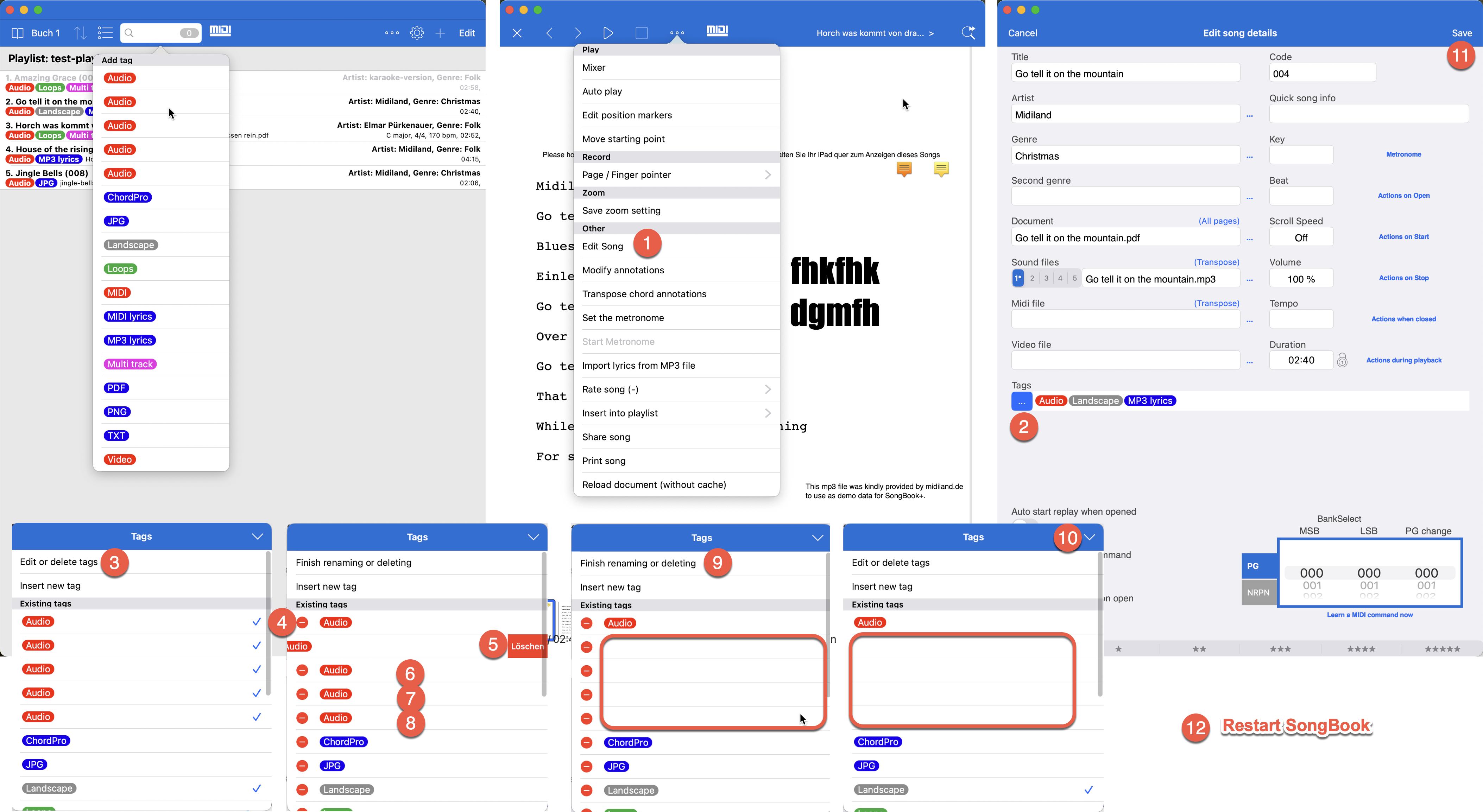
- Edit a song with tags
- Press the “...” button next to the tags.
- Press the menu item “Edit or delete tags.”
- Press the red minus button.
- Confirm with “Delete.” The line may not disappear immediately, but will only be displayed as empty.
- Repeat with all tags to be deleted.
- Repeat with all tags to be deleted.
- Repeat with all tags to be deleted.
- Press the “Finish renaming or deleting” menu item.
- Close the window with the tags.
- Press “Save” in the song.
- SongBook may need to be restarted for the empty lines/tags to disappear completely.
The songs that previously contained the deleted tags will no longer have the tag. You can then add it again.
From version 6.5 onwards, there will also be a function that allows you to insert a tag into several selected songs at the same time. Before that, however, you will still have to do it individually for each song.